
360° Panorama Camera App for Android
Panorama 360 is a 360° panorama camera app for Android that guides you through horizontal and full-sphere capture, then stitches the photos on your phone.
Panorama 360 isn't on Google Play yet.
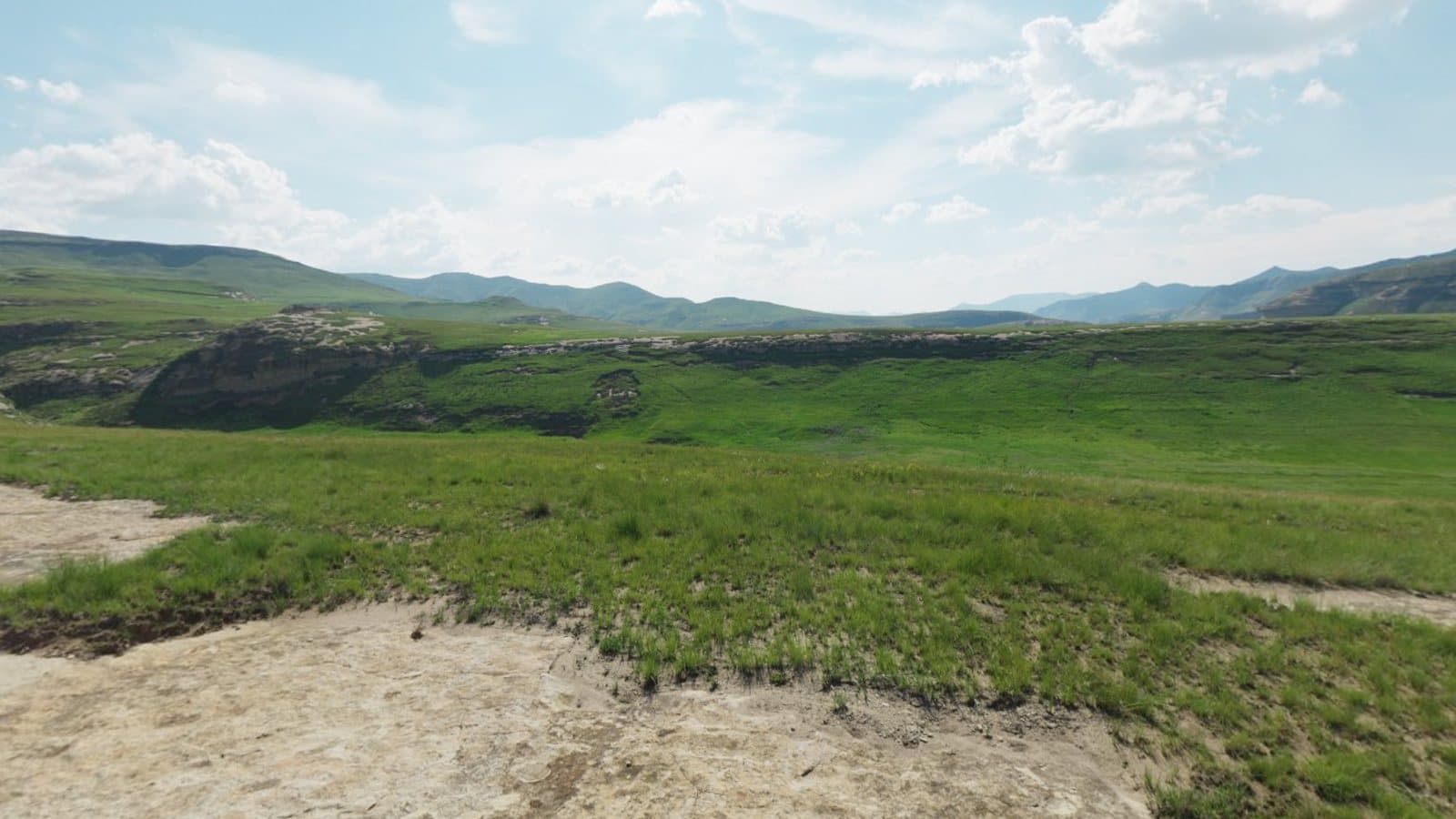
A 360° panorama camera app turns an ordinary phone into a tool for capturing the whole scene around you. Instead of one flat photo, you take a guided series of overlapping photos, and the app joins them into a single wide image that you can look around. Panorama 360 is being built for Android to make that process guided, checkable and honest about what it has captured.
Panorama 360 is coming soon to Android and is not on Google Play yet. Everything below describes the app as it is being built, not a store listing.
How Panorama 360 works
Open the app, sign in once with an emailed code, and choose a capture mode. The camera screen then shows you where to point next. Your phone's motion sensors track which direction the camera faces, so the app knows when you are lined up with the next spot and when you are holding still. In automatic mode it takes the photo for you; if you prefer, you can press the shutter yourself.
While you shoot you can see a level indicator, a counter for photos taken and a small map of the sphere that fills in as you go. You can pause, undo the last photo, or leave and come back later: the photos you have already taken are saved so an interrupted session is not lost.
When you finish, the app stitches the photos together on your phone and shows progress. You can cancel, and if something fails the photos are kept so you can try again.
The two capture modes
Horizontal 360° is one full turn around you. It usually takes about 10 to 14 photos, depending on your lens. The result is a 360° panorama covering a band of the view, without the floor or ceiling. It is the quick option for rooms, landscapes and street scenes.
Full sphere 360° × 180° asks for several rings of photos at different heights, plus the floor and the ceiling. It usually takes about 25 to 35 photos and a few minutes. The app only calls the result a full sphere when the coverage map shows the whole sphere was captured. If it was not, the result is saved as a partial panorama and says so. You can read more about the difference on our page about spherical 360° panoramas.
Stitching, viewing and export
Stitching combines your photos in several steps. The phone's sensors give each photo a starting orientation, the app then matches visible details between neighbouring photos to refine the alignment, balances exposure between them and blends the overlaps. Our panorama photo stitcher page explains what happens in plain language.
Once a panorama is ready you can look around it in the built-in viewer by dragging, pinching to zoom and double-tapping to reset. A simple editor lets you set the direction viewers see first, straighten a leaning horizon on complete spheres, crop partial panoramas and adjust colour. Edits are saved as new versions, so your original stays untouched.
You can then save the panorama to your gallery or share it as a JPEG. Exports include Google's spherical panorama metadata, so compatible viewers can show the image as a 360° photo. Free exports are limited to 4096 pixels wide and carry a small Panorama 360 mark; paid plans remove both.
Practical tips for better results
- Turn on the spot. Keep your elbows in and rotate your body around the phone rather than walking in a circle. Moving the phone sideways causes parallax, which makes nearby objects hard to align.
- Keep your distance from things. Stitching works best when most of the scene is a few metres away. Close furniture, railings and people create visible seams.
- Hold still when the app asks you to. Sharp photos give the stitcher more detail to match.
- Avoid moving subjects. People or cars crossing the overlap can appear twice or be cut in half.
- Light the scene evenly. Strong contrast, such as a bright window in a dark room, is the hardest case for exposure matching.
For a longer walkthrough, read how to take a 360° panorama photo with your phone.
Supported devices
Panorama 360 is built for Android 10 or later. It needs a back camera and motion sensors that can report device rotation. Camera quality, lens field of view and sensor accuracy differ between phones, which affects how many photos are needed and how clean the result looks, so results will vary. We will not claim compatibility with every Android phone.
Benefits and honest limitations
The main benefit is guidance: you do not have to guess where you have been or whether you missed a patch of floor. Processing on your phone means you do not need to upload photos to a service just to stitch them.
The limitations are real, too. A phone lens sees a narrow slice of the scene, so a full sphere needs dozens of photos. Handheld capture cannot match a tripod for precision, and moving people, reflections and very close objects can leave visible errors. A dedicated 360° camera captures everything at once and may suit moving scenes better. If you are deciding between the two, our article on creating 360° photos with an Android phone compares them. For what is included and what is planned, see features and pricing.
Frequently asked questions
Is Panorama 360 a free 360° camera app?
The app is planned with a free tier for capturing, stitching and viewing, plus optional paid plans. Pro is planned at $4.99 a month and Studio at $14.99 a month, and the app is not on Google Play yet.
Does the app capture a full 360° × 180° sphere?
Yes, it has a full-sphere mode that asks for several rings of photos plus floor and ceiling. If a sphere is incomplete, the result is saved as a partial panorama, never as a full sphere.
Will it work on my Android phone?
It is built for Android 10 or later and needs a back camera and motion sensors. Because phones differ, we cannot promise identical results on every device.
Do my photos leave my phone to be stitched?
No. Stitching runs on the phone. Photos only leave the device if you choose to share an export, or when optional AI tools launch and you confirm an operation.
Keep reading
- 5 min readHow to Take a 360° Panorama Photo with Your PhoneChoose a capture mode, turn on the spot, overlap each photo by about a third and let the app stitch them. Here is the full workflow and how to avoid the usual problems.
- 5 min readPanorama vs 360° Photo: What's the Difference?Not every wide image is a 360° photo, and not every 360° photo is a sphere. Here is how the formats differ and how to choose between them.
- 5 min readCan You Create 360° Photos with an Android Phone?An Android phone can produce 360° photos by taking and stitching many shots. Here is how it works, what limits the quality and how it compares with a dedicated camera.
Panorama Camera AppSpherical 360° PanoramasSmartphone 360° PhotographyFeatures and Pricing