
Panorama Camera App for Android
What a panorama camera app does, how it differs from a normal photo, and how Panorama 360 guides you to a clean wide panorama on Android.
Panorama 360 isn't on Google Play yet.
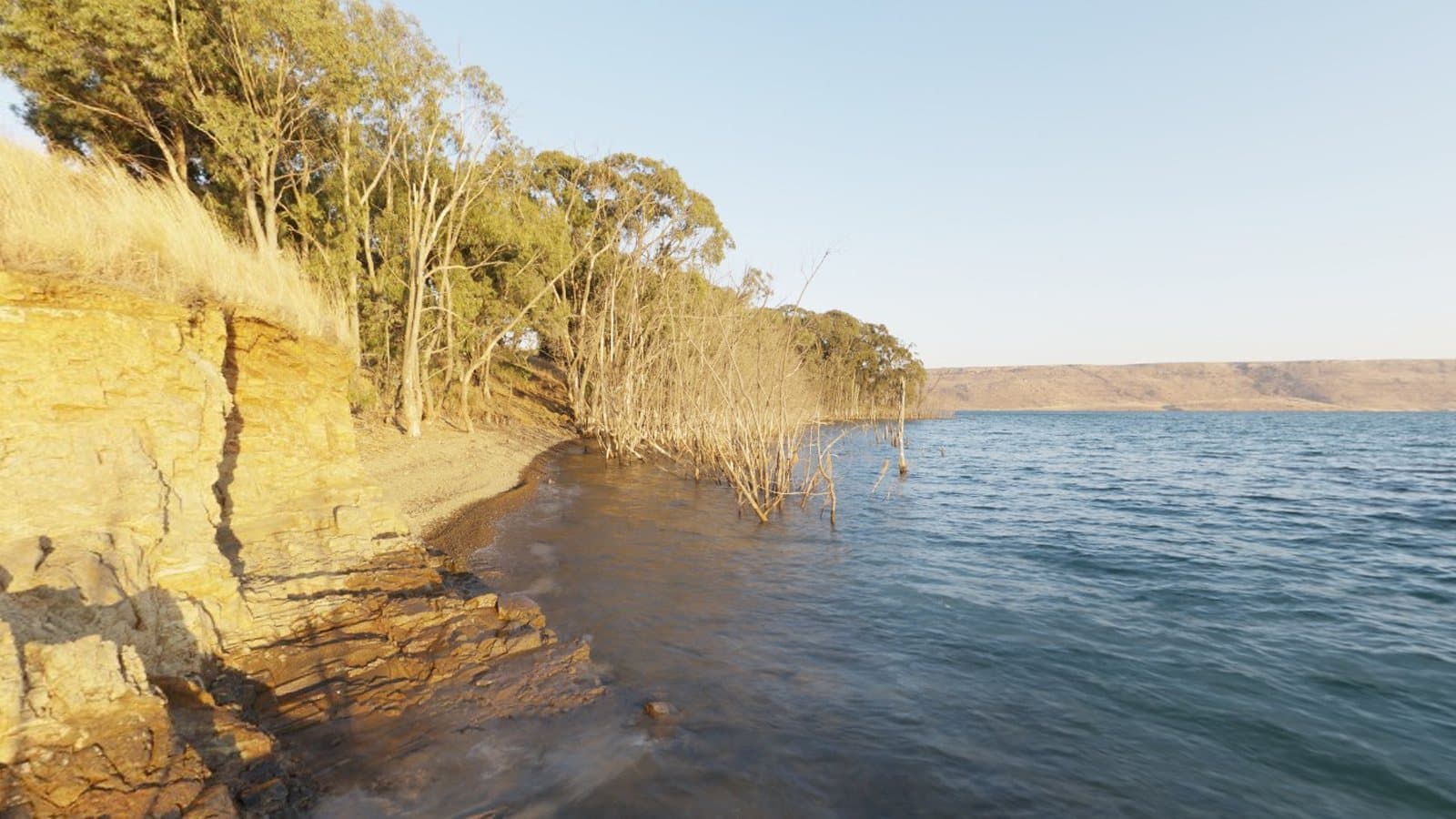
A panorama app helps you capture a scene wider than a single photograph can hold. Rather than stepping back or switching to an ultra-wide lens, you turn the camera and take several overlapping photos. The app then joins them into one continuous image. Panorama 360 is an Android panorama camera app built around guidance, so you can see what you have covered before you commit to the result.
Panorama 360 is coming soon to Android. It is not on Google Play yet.
What a panorama app actually does
At its core, a panorama app does three jobs. It helps you capture the right photos, it aligns them so the same objects line up, and it blends the overlaps so the join is hard to see. A good one also tells you what went wrong when the result is poor.
The capture step matters most. If photos do not overlap enough, the app has nothing to match. If the camera moves while you shoot, the images blur. If exposure changes from one shot to the next, brightness steps appear where photos meet. Guidance is simply a way of preventing those problems while you are still standing in the scene.
Wide-angle photo versus panorama
An ultra-wide lens fits more into one frame, but it stretches the edges and still has a fixed field of view. A panorama is built from several frames, so its width is limited by how far you turn rather than by your lens. It can be a gentle sweep across a skyline, a full 360° turn, or a complete sphere that includes the floor and ceiling.
Panoramas also have different shapes. Most are wide strips. Some are 360° around but only a band tall. Others are full spherical images that you view by looking around inside them. Our article on panorama versus 360° photo explains each shape and when to use it.
Smartphone camera considerations
Phone cameras are small, so they behave differently from larger cameras in a few ways that matter for panoramas:
- Field of view differs. Main and ultra-wide lenses see different amounts of the scene. Wider lenses need fewer photos but show more edge distortion.
- Automatic exposure moves. If the camera changes exposure as it points at a bright window and then a dark wall, the photos will not match. Locking exposure after the first photo keeps them consistent, and Panorama 360 does this during capture.
- Processing varies. Some phones sharpen or denoise aggressively, which can affect how well details match between photos.
- Motion sensors help. Phones can report which way they are pointing. Using that information gives the stitcher a good starting guess for every photo.
What Panorama 360 offers
Panorama 360 provides two capture modes: a horizontal 360° turn and a full 360° × 180° sphere. You see a level indicator and a map of coverage while you shoot. Photos can be taken automatically when you are steady and aimed, or manually. The app checks each photo for blur, lets you undo the last one and keeps the photos from an interrupted session.
Stitching runs on your phone and reports progress. You can then look around the result in a built-in viewer, make light edits (the start view, a leaning horizon on complete spheres, cropping and colour) and save or share a JPEG with spherical metadata. The page on the 360° panorama camera app walks through the full workflow, and features and pricing lists what is in the app and what is planned.
How to capture better panoramas
- Pick a spot and stay on it. Rotate your body, not your position.
- Keep the phone upright and level. The on-screen level helps. A tilted start tilts the whole result.
- Overlap by roughly a third. The app aims for about 30 percent and adjusts to your lens.
- Pause briefly for each photo. A moment of stillness gives sharper images.
- Watch for movement. Wait for people and vehicles to clear the overlap zones.
- Check the edges. Fences, railings and furniture close to the camera are the most likely to stitch badly.
More detail is in our guide to panoramic photography tips and the list of common panorama mistakes.
Limits worth knowing
Panorama apps cannot fix a bad capture. If a scene has fast movement, strong parallax or very flat, textureless areas such as a blank wall, the stitcher may struggle, and the app will tell you when alignment relies mainly on the phone's sensors. Handheld results will not match tripod precision. Results also depend on your phone, so we do not promise the same quality on every device.
Frequently asked questions
What is the difference between a panorama and a wide-angle photo?
A wide-angle lens captures a wide view in a single exposure, but with distortion at the edges. A panorama combines several overlapping photos into one image that can be much wider than any single lens allows.
Can I make a panorama with my normal camera app?
Many phones include a sweep panorama mode. A dedicated panorama app can offer more guidance, spherical coverage and the ability to review and edit the result.
Is Panorama 360 available now?
Not yet. It is coming soon to Android and will be linked here when it is on Google Play.
Does a panorama app work in low light?
It can, but low light means slower exposures and more blur, which make stitching harder. Steady hands and even lighting help far more than any setting.
Keep reading
- 5 min readPanorama vs 360° Photo: What's the Difference?Not every wide image is a 360° photo, and not every 360° photo is a sphere. Here is how the formats differ and how to choose between them.
- 5 min readHow to Take Better Panoramic Photos: 12 Practical TipsTwelve specific habits that make panoramas sharper, better aligned and easier to stitch, from how you stand to how you export.
- 5 min read10 Common Panorama Photography Mistakes and How to Fix ThemOverlap, movement, exposure, parallax, gaps: ten mistakes that ruin panoramas, why they happen and how to fix each one.
360° Panorama Camera AppSmartphone 360° PhotographyPanorama Photo Stitcher