
360° Panorama Photography for Real Estate
How agents and property marketers can use 360° panoramas for listings, how to prepare rooms, and where a phone panorama stops and a virtual tour begins.
Panorama 360 isn't on Google Play yet.
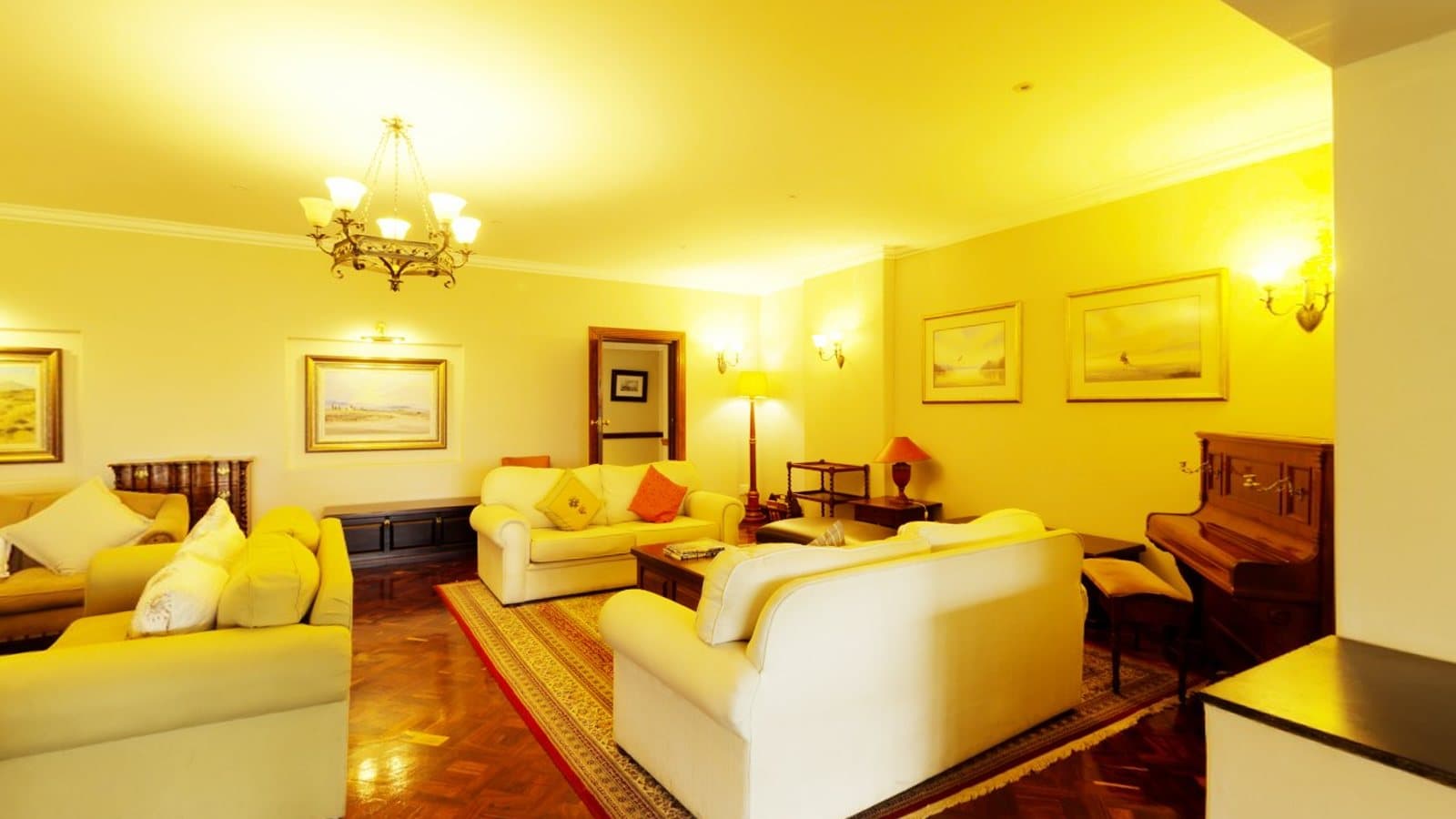
A single wide-angle photo shows one corner of a room. A 360° panorama lets a viewer stand in the middle of it and look wherever they like. For property marketing, that can help buyers or renters understand the size, layout and light of a room before they visit. This page explains how panoramas are used in real estate, how to prepare for them, and what Panorama 360 does and does not do for property work.
Panorama 360 is coming soon to Android and is not on Google Play yet.
Where panoramas help in property marketing
A good panorama answers questions a still photo cannot: how big is the room, where are the windows, how does the kitchen connect to the living area? Typical uses include:
- Listing pages. An interactive panorama beside the usual photos.
- Short-let and holiday properties. Guests can see the actual space before booking.
- Show homes and new developments. Spaces can be shown before furniture is delivered or while access is limited.
- Interior design portfolios. Before-and-after views of the same room.
These are possible uses, not guaranteed results. Whether panoramas improve enquiries depends on the property, the platform and the quality of the images.
Preparing the room
Preparation affects the result more than any app setting. Tidy surfaces, switch on the lights and open the curtains for even daylight. Remove reflective clutter and close cupboard doors. Choose your position near the middle of the room at about chest height, which usually gives the most natural view. Because the camera sees everything, check the whole space: cables, bins and your own shadow are visible from every angle.
Windows are the main challenge. A bright window next to a dark wall pushes exposure to its limit. Shooting when daylight is soft, or turning on interior lights to balance the brightness, usually helps.
Capturing with a phone
With Panorama 360 you choose a capture mode and follow the guidance. A horizontal 360° is the quicker choice and often enough for a room with an ordinary ceiling. A full sphere includes the floor and ceiling, which matters in rooms where a feature such as a skylight or a staircase is part of the appeal. Turn on the spot, hold still when the app asks and avoid walking people through the overlap zones.
The app locks exposure after the first photo to keep the photos consistent, shows a coverage map and checks each photo for blur. Afterwards you can set the direction viewers see first, for example the best-looking corner, and, for complete spheres, straighten a leaning horizon.
Panoramas versus complete virtual tours
A panorama is one viewpoint. A virtual tour connects several. In Panorama 360 you can add hotspots to a panorama and link one panorama to another by hand, so you can build the connections between rooms yourself. The Studio plan can export linked panoramas as a tour package that you can host on your own website. Hosted share links are being prepared and are not available yet, and the app does not publish listings. Our guide to creating a 360° virtual tour explains the difference in more detail.
Tips for agents and property marketers
- Photograph every key room from a consistent height.
- Capture the same room at the same time of day if you plan to compare.
- Start each panorama facing the room's best feature, then set that as the start view.
- Avoid shooting mirrors head-on; stand slightly off-axis.
- Describe the space accurately. Panoramas should help people understand a property, not overstate it.
For a step-by-step approach, read how to take 360° photos for real estate listings and how to create a virtual tour without a 360° camera.
AI and listing text
AI tools for descriptions and listings are planned, not available yet. When they launch they will be optional, they will use prepaid credits and they will show the cost before you confirm. They will separate what the AI observes in the image from the facts you supply, and they will not be allowed to invent a location, price, size or amenities. See AI panorama tools.
Limitations
Phone capture cannot match a professional rig in every room. Very small rooms leave little distance between you and the walls, which makes parallax errors more visible. Mirrors and glossy surfaces reflect you and the phone. Always check the finished panorama before publishing, and remember that you are responsible for whether it represents the property fairly.
Frequently asked questions
Is a 360° panorama the same as a virtual tour?
No. A panorama is one viewpoint. A virtual tour links several viewpoints, usually with hotspots, so viewers can move between rooms.
Does Panorama 360 publish property listings?
No. The app captures, edits and exports panoramas. It does not publish to property portals, and hosted share links for tours are being prepared and are not available yet.
Can the app write my listing description?
AI tools for listing text are planned but not launched. When they arrive, they will use credits, show the cost first and distinguish what the AI sees in the photo from the facts you enter.
Will a phone panorama match a professional photographer?
It can be useful, but it will not match professional equipment and a tripod in every room. Plan for limits with mirrors, bright windows and tight spaces.
Keep reading
- 5 min readHow to Take Better Panoramic Photos: 12 Practical TipsTwelve specific habits that make panoramas sharper, better aligned and easier to stitch, from how you stand to how you export.
- 5 min readHow to Take 360° Photos for Real Estate ListingsFrom staging a room to handling windows and mirrors, here is how to capture honest, usable 360° photos for property listings with a phone.
- 5 min readHow to Create a Virtual Tour Without Buying a 360° CameraYou can build a basic virtual tour from phone panoramas. Here is the equipment, the workflow, the difference between panoramas and tours, and where the limits are.
360° Panorama Camera AppCreate a 360° Virtual TourAI Panorama Tools