
Full Spherical 360° Panorama Photography
Learn what a full spherical 360° × 180° panorama is, how it differs from a horizontal 360°, how equirectangular images work and how to capture one with a phone.
Panorama 360 isn't on Google Play yet.
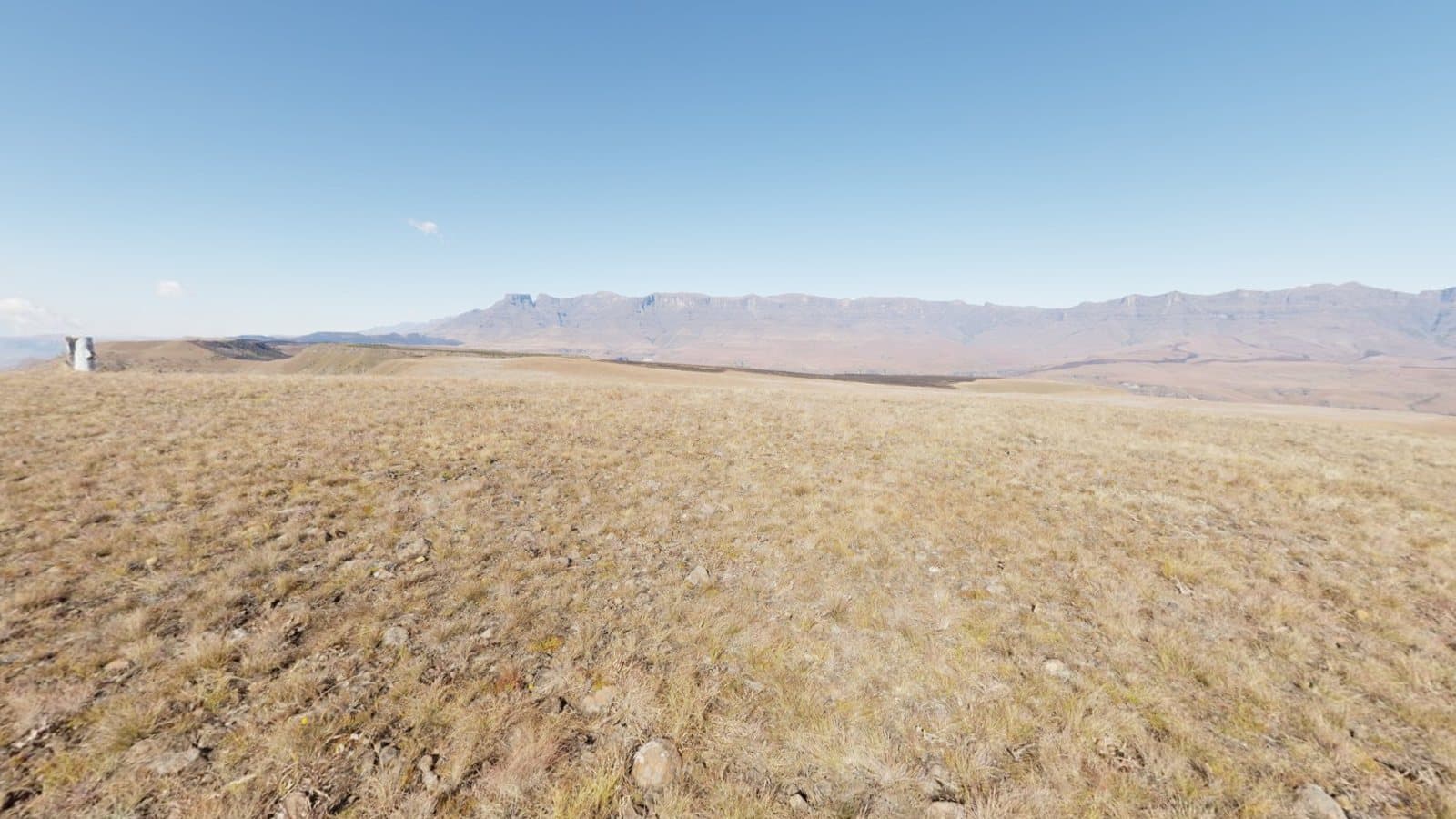
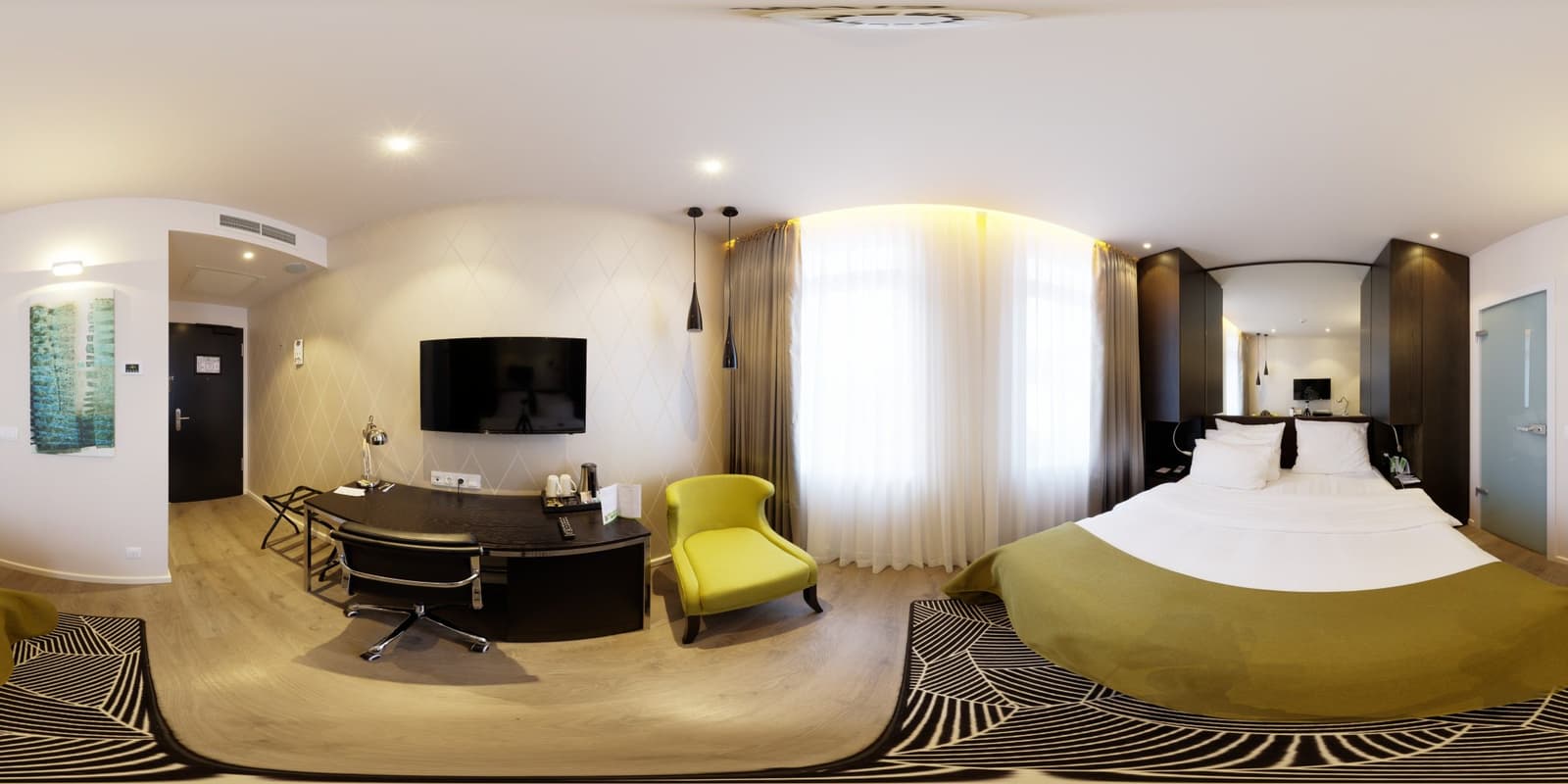
A spherical panorama records the view in every direction: all the way around you and from straight up to straight down. When you open one in a viewer you can look at the ceiling or the floor as easily as the horizon. This page explains what makes an image truly spherical, how it is stored, and what Panorama 360 does when you capture one.
Panorama 360 is coming soon to Android and is not on Google Play yet.
Horizontal 360° versus full 360° × 180°
These two terms are often mixed up, but they describe different coverage.
- Horizontal 360° means the image wraps all the way around horizontally. Its height covers only a band, for example the part of the scene a phone sees when it is held upright. There is no floor and no ceiling.
- Full spherical 360° × 180° covers 360° horizontally and 180° vertically. Nothing is missing: the camera has seen the sky or ceiling directly above and the floor directly below.
A horizontal panorama is never a full sphere, no matter how wide it is. Panorama 360 keeps the two apart. A full sphere is only called a full sphere when the whole sphere was covered.
The equirectangular format
A sphere cannot be laid flat without stretching, so photographers use a standard map projection called equirectangular projection. Horizontal position in the image is longitude, vertical position is latitude. A full sphere becomes a 2:1 image: twice as wide as it is tall. Details near the horizon look normal, while the floor and ceiling are stretched across the full width at the bottom and top edges.
That stretching is why a flat equirectangular image looks strange but looks correct inside a viewer, which maps the image back onto a sphere. The format is described in more detail on the Wikipedia page for the equirectangular projection.
Images also carry metadata that tells software the file is a panorama. Google documents the fields used for spherical JPEGs in its spherical metadata specification. Panorama 360 writes this metadata into exported JPEGs, and describes partial panoramas using the cropped-area fields so they are never mistaken for full spheres.
Capturing a sphere with a phone
A phone camera sees a narrow field of view, especially in the upright position, so covering a sphere takes several rings:
- A ring around the horizon.
- A ring pointing upward.
- A ring pointing downward.
- A shot straight up and a shot straight down.
Each photo should overlap its neighbours, by roughly 30 percent in Panorama 360. In practice that means about 25 to 35 photos and a few minutes. The coverage map in the app fills in as you shoot, so you can see exactly which regions are still empty and go back to them.
Stitching considerations
The hardest parts of a sphere are the poles and the edges. Near the zenith and nadir the photos converge, so small orientation errors are easier to see. Panorama 360 uses the phone's motion sensors as a starting point for every photo, matches visible details between neighbours to correct small errors, balances exposure and blends the overlaps. If the scene has little detail to match, such as a blank ceiling, the alignment relies more on the sensors, and the app reports that.
For a deeper explanation read how photo stitching works or our panorama photo stitcher page.
Common limitations
- Parallax. If you move the phone instead of rotating it on the spot, nearby objects shift relative to the background and will not line up.
- Movement. People and vehicles can appear twice or be cut apart.
- Floor and ceiling. The tripod or your own feet can appear in the floor shot if you stand on the spot. Handheld capture cannot remove them.
- Lighting. Very bright windows next to dark rooms are difficult for exposure matching.
- Device differences. Lens field of view and sensor accuracy vary, so results differ between phones.
Panorama 360 modes
The app offers Horizontal 360° for a quick turn and Full sphere 360° × 180° for complete coverage. In the viewer you can look around by dragging; the editor can set the starting direction and straighten the horizon on complete spheres. You can also add hotspots and link one panorama to another by hand. If you want to understand the topic from the ground up, start with our beginner's guide, what is a spherical panorama. The 360° panorama camera app page describes the whole app, and create a 360° virtual tour explains how panoramas fit into tours.
Frequently asked questions
Is a horizontal 360° panorama the same as a spherical panorama?
No. A horizontal 360° panorama goes all the way around you but only covers a band of the view. A full spherical panorama also covers the ceiling or sky and the floor or ground, 180° vertically.
What is an equirectangular image?
It is the standard flat format for a sphere: longitude maps to the horizontal axis and latitude to the vertical axis. A full sphere is a 2:1 image whose top and bottom edges stretch the poles.
Why does a full sphere need so many photos?
A phone camera sees a small part of the sphere. Covering everything with overlap takes several rings of photos plus the floor and ceiling, typically around 25 to 35 for Panorama 360.
What happens if I miss part of the sphere?
Panorama 360 shows missing areas on a coverage map while you shoot. If you finish with gaps, the result is saved as a partial panorama and is not marked as a full sphere.
Keep reading
- 5 min readPanorama vs 360° Photo: What's the Difference?Not every wide image is a 360° photo, and not every 360° photo is a sphere. Here is how the formats differ and how to choose between them.
- 5 min readWhat Is a Spherical Panorama? A Beginner's GuideA spherical panorama records everything around you, including up and down. Learn how it is stored, captured and viewed, and why it is harder than a flat panorama.
- 5 min readHow Photo Stitching Works: From Multiple Images to One PanoramaStitching finds the same details in overlapping photos, works out how the camera moved and blends the result. Here is each step and where it goes wrong.
360° Panorama Camera AppSmartphone 360° PhotographyPanorama Photo StitcherCreate a 360° Virtual Tour