
Create Interactive 360° Virtual Tours With Panorama 360
Build interactive 360° virtual tours from phone panoramas: add scenes, link them with hotspots and preview. See what works today and what is planned.
Panorama 360 isn't on Google Play yet.
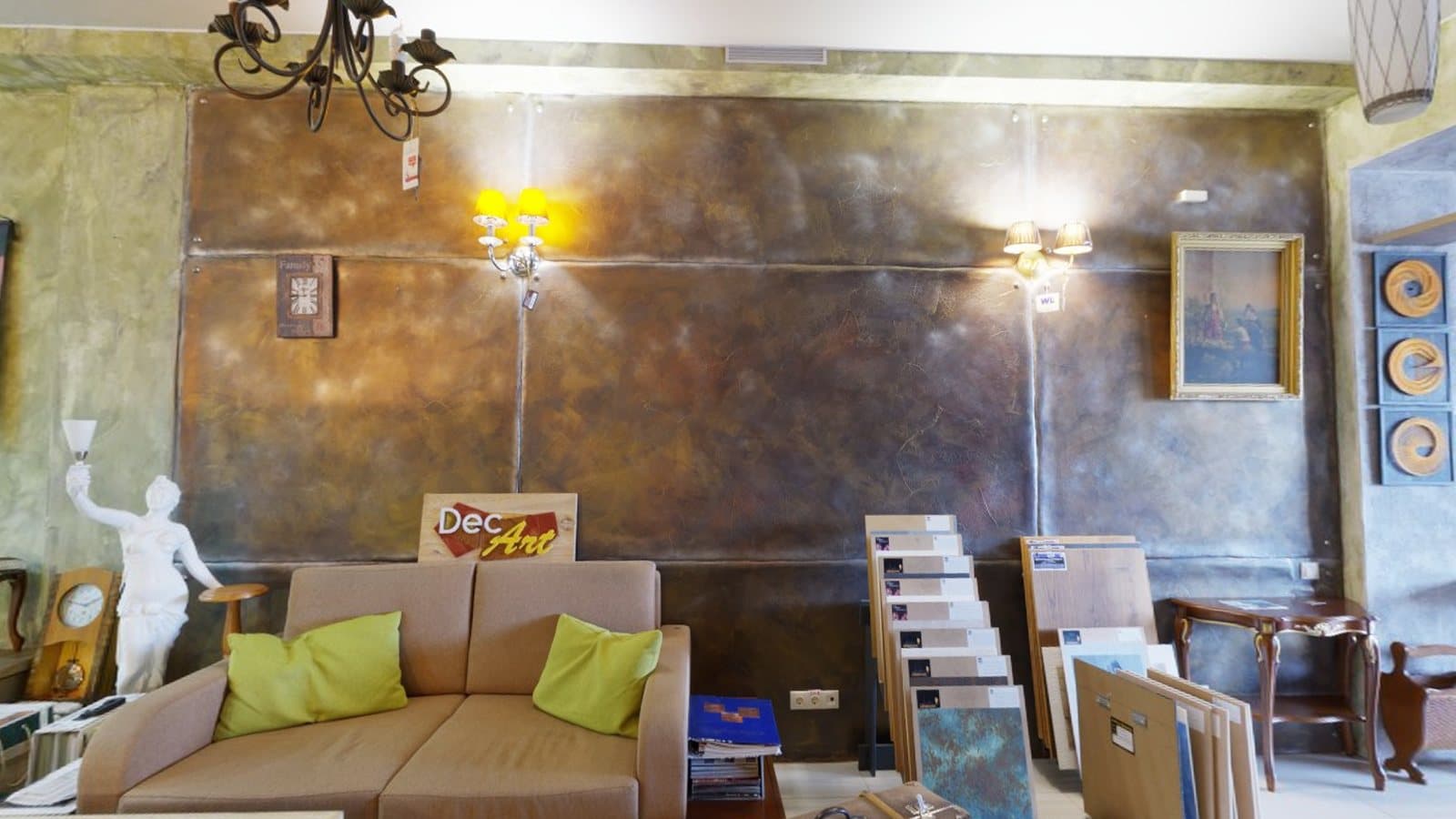
A virtual tour lets visitors move through a place by jumping between 360° viewpoints. Each viewpoint is a panorama; the tour is the set of connections between them. You can build a simple one from smartphone panoramas without special equipment. This page explains how tours work, how to plan one, and exactly what Panorama 360 provides for the job.
Panorama 360 is coming soon to Android and is not on Google Play yet.
What a virtual tour is
A virtual tour is a collection of linked panoramas, often called scenes. Visitors look around one scene and click or tap a marker, called a hotspot, to move to another. Hotspots can also carry information, such as a label or note about something in the room. The general idea is described on the Wikipedia article on virtual tours.
A single panorama is not a tour. It is one place to stand. A tour adds the connections that let viewers explore.
Planning your viewpoints
Planning saves time and makes the tour feel natural:
- Walk the space first. Decide the route a visitor would take.
- Choose one viewpoint per area. Each should show the way to the next. For an apartment, that might be the entrance, living room, kitchen, bedroom and bathroom.
- Keep viewpoints roughly one doorway apart. Too far apart and visitors lose their sense of space.
- Use consistent height and lighting. Shoot at the same height and, if possible, in the same session.
- Name every scene so links are easy to set up later.
Capturing the scenes
Capture each viewpoint with Panorama 360. A horizontal 360° is usually enough for ordinary rooms and quick to take. A full sphere is worth it when the floor or ceiling matters. Turn on the spot, hold still when prompted and let the stitcher finish before moving on. Check each result in the viewer before you leave, because it is much easier to retake a panorama while you are standing there.
The Virtual Tours builder
Virtual Tours has its own tab in the app. A step-by-step builder walks you through six steps, and every change is saved on your phone as you go, so you can stop and come back, even offline:
- Details: a name, optional location, category and description, plus optional business contact details and an enquiry button.
- Add scenes: pick panoramas from your gallery, import images, or capture a new one. Each image is checked; flat photos are labelled flat and never passed off as 360°.
- Organize: reorder, rename, replace or delete scenes, and choose a cover. Deleting a scene also removes the links that pointed to it.
- Connect scenes: look around a scene and tap where a doorway or path is to place a navigation hotspot, then choose the scene it leads to. Links are created only by you; the app never guesses where a door leads.
- Information points: add a title, description, optional photo, link and an optional enquiry button wherever you want to say more.
- Preview and save: walk through the tour as a visitor would, then save it on your phone.
The planned AI tools can draft scene descriptions, link labels and tour text. They use AI credits, show the cost and what is sent first, and give you an editable result before anything is applied.
Sharing a tour
Publishing to a link with a QR code is part of the app, but it needs a hosting service that is not switched on yet, so it is not available today. When it is, it will be for Pro and Studio subscribers and will use a separate prepaid hosting balance, with the period, limits and end-of-period behaviour shown before you pay. Your tour on your phone is never deleted when hosting ends. Hosting credit prices have not been announced.
Exporting a tour with Studio
The Studio plan can export selected panoramas, with their hotspots and links, as a tour package. The package is a small static website containing the pages, the images and a bundled open-source viewer (Pannellum). Upload it to your own hosting and share the link. Links that point to a panorama you left out are dropped rather than left broken. Studio also includes client folders for organising projects.
What Panorama 360 can and cannot do
Can today: capture panoramas, edit them lightly, build a linked virtual tour with information points on your phone, preview it, and (with Studio) export a hostable tour package.
Planned, not available yet: hosted tour links with QR codes and sharing buttons, and AI text for tours.
Cannot: publish to listing sites or provide tour analytics beyond simple view counts on hosted tours. If you need those today, host the exported package yourself or use a separate tour platform. We do not claim the app alone delivers a complete hosted tour yet.
Related: 360° for real estate, 360° for hotels, spherical panoramas and making a tour without a 360° camera.
Frequently asked questions
Does Panorama 360 host my virtual tour?
Not yet. The app builds and saves your tour on your phone. Publishing to a shareable link with a QR code is built into the app but depends on a hosting service that is not switched on, so it is not available today. Studio can export a tour package that you host yourself.
Do I need a subscription to build a tour?
Building, previewing and saving tours on your phone is free. Hosted links and QR codes are for Pro ($4.99 a month) and Studio ($14.99 a month) subscribers, with a separate prepaid hosting balance, a stated period and limits. Your phone copy is never deleted when hosting ends.
What if my image is not a real 360° panorama?
The app checks each image. A full sphere needs panorama metadata or your confirmation that a 2:1 image really is 360° by 180°. Anything else is added as a flat image and labelled that way, and links cannot be placed on it.
What is the difference between a panorama and a virtual tour?
A panorama is a single viewpoint you can look around. A virtual tour connects several panoramas so viewers can move between them.
Do I need a 360° camera?
No. You can build a tour from phone panoramas. A dedicated 360° camera can be faster, especially for moving scenes, but it is not required.
How many panoramas do I need?
Enough to cover each space a visitor should see, with each viewpoint visible from the previous one. A small flat might need a handful; a hotel needs many more.
Keep reading
- 5 min readHow to Take 360° Photos for Real Estate ListingsFrom staging a room to handling windows and mirrors, here is how to capture honest, usable 360° photos for property listings with a phone.
- 5 min readHow to Create a Virtual Tour Without Buying a 360° CameraYou can build a basic virtual tour from phone panoramas. Here is the equipment, the workflow, the difference between panoramas and tours, and where the limits are.
- 5 min readHow Hotels and Restaurants Can Use 360° PhotographyRooms, dining rooms, terraces and event spaces all suit 360° views. Here is where they help, how to plan the shoot and when a full virtual tour makes sense.